|
Configuration for Client
|
| Configure on Client. This example is on Outlook Exress. |
|
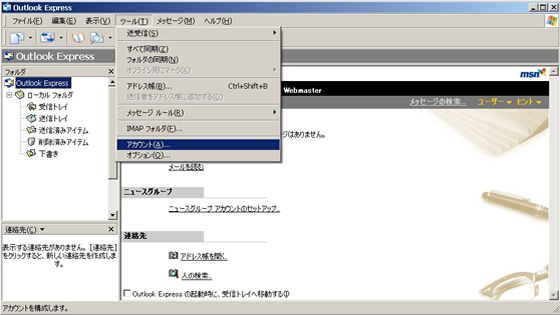
| [1] | Start Outlook Express and select [Tools] - [Accounts] like below. |
|
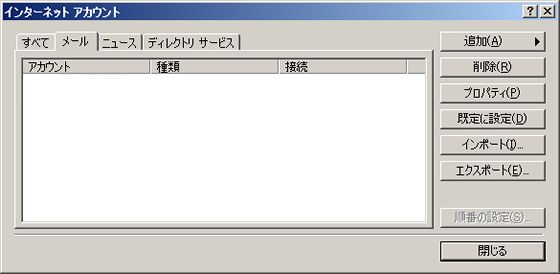
| [2] | Move to 'Mail' tab and Click [Add] - [Mail] that is on the right. |
|
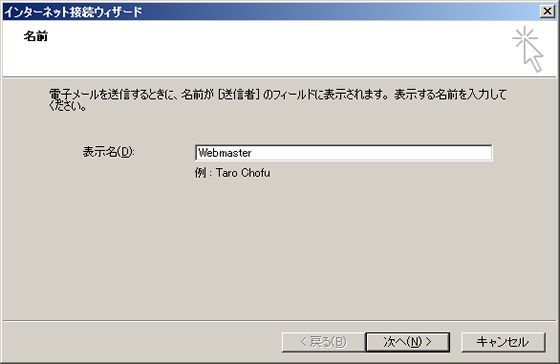
| [3] | Input display name of sender. |
|
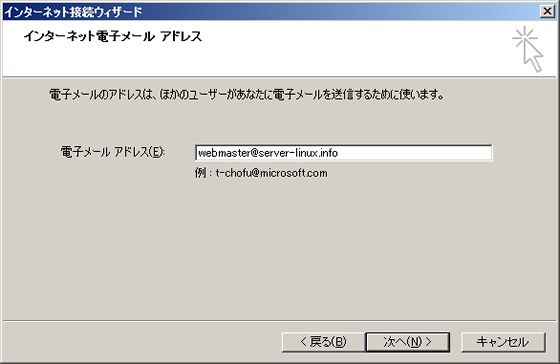
| [4] | Input email address. |
|
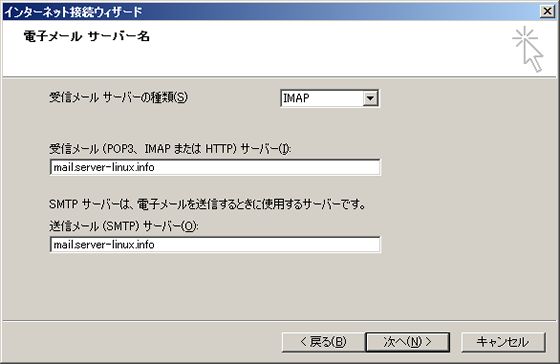
| [5] | Specify Server that is used for incoming and outcoming email. And Select type of Protocol of incoming Server. ( I select IMAP like following screen. ) |
|
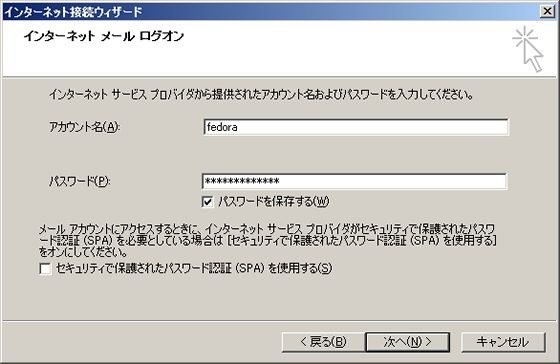
| [6] | Input user name and password. |
|
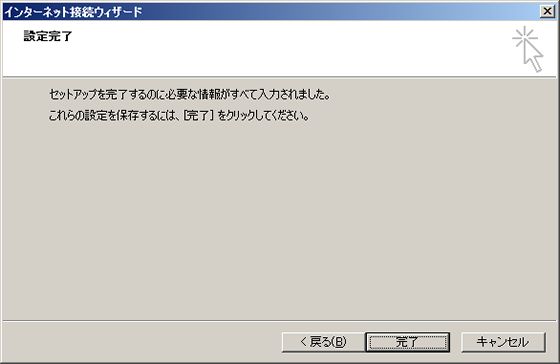
| [7] | Click 'Finish' button. |
|
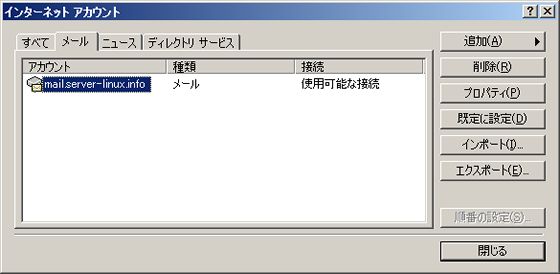
| [8] | Click 'Properties' button that is on the right. |
|
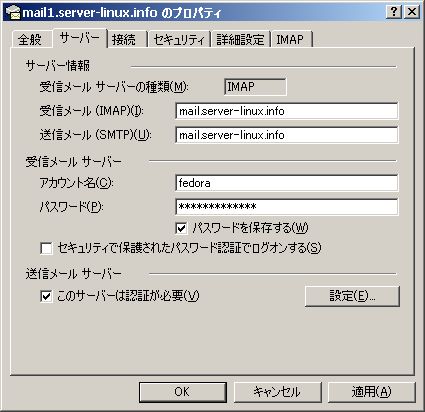
| [9] | Move to 'Servers' tab and Check a box 'My server requires authentication' like following screen. Next, Click 'Apply' button and Click 'OK'. Configuration on client is just completed. |
|